Multi-factor authentication (MFA) and how to enable it
We strongly recommend enabling multi-factor authentication (MFA) for the following reasons:
Security! MFA significantly strengthens the protection of your account. Even if someone finds out your password, they still won’t be able to access your account.
By verifying your identity with an additional factor (your mobile phone), MFA prevents anyone else from logging in to your account, even if they know your password. This makes it harder for hackers to access your account and helps protect your company’s personal and financial data.
How do I enable MFA?
- Click your email address in the top right-hand corner and select Settings.
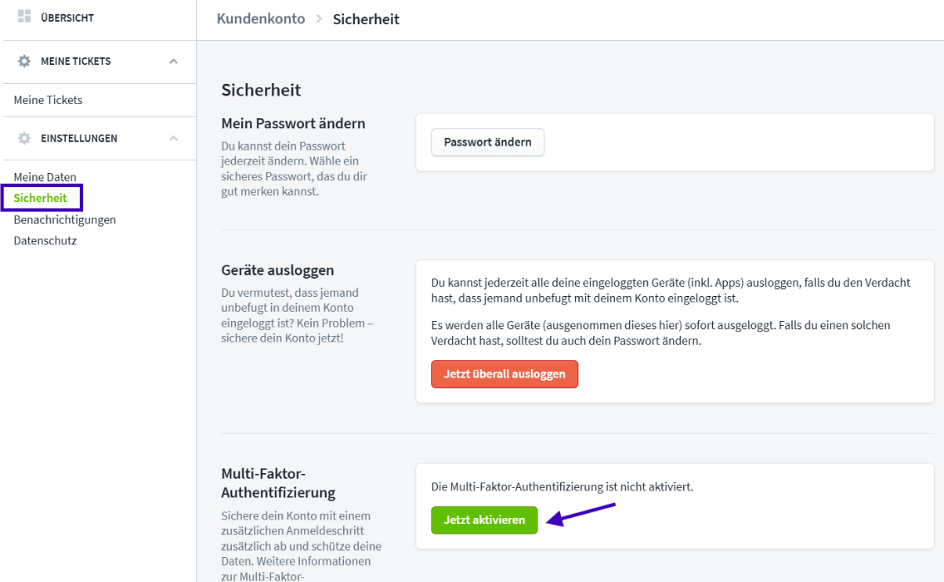
- Open Security in the menu.
- Go to Multi-factor authentication and click Enable now.
- Enter your password.
- Scan the QR code with an authenticator app on your smartphone. If you don’t have one yet, you can download Microsoft Authenticator from the App Store or Google Play Store, for example.
- Enter the code displayed and click Next. The code changes every 30 seconds.
- Enter your mobile number. It helps us identify you if you can no longer access your account.
- Save the recovery code displayed in a safe place. You can use it to regain access to your account in an emergency. Then click Complete activation.
MFA is now enabled. The next time you log in, you’ll enter the code from your authenticator app in addition to your password.